

Back Up N8N Workflows to Airtable — Smart Sync
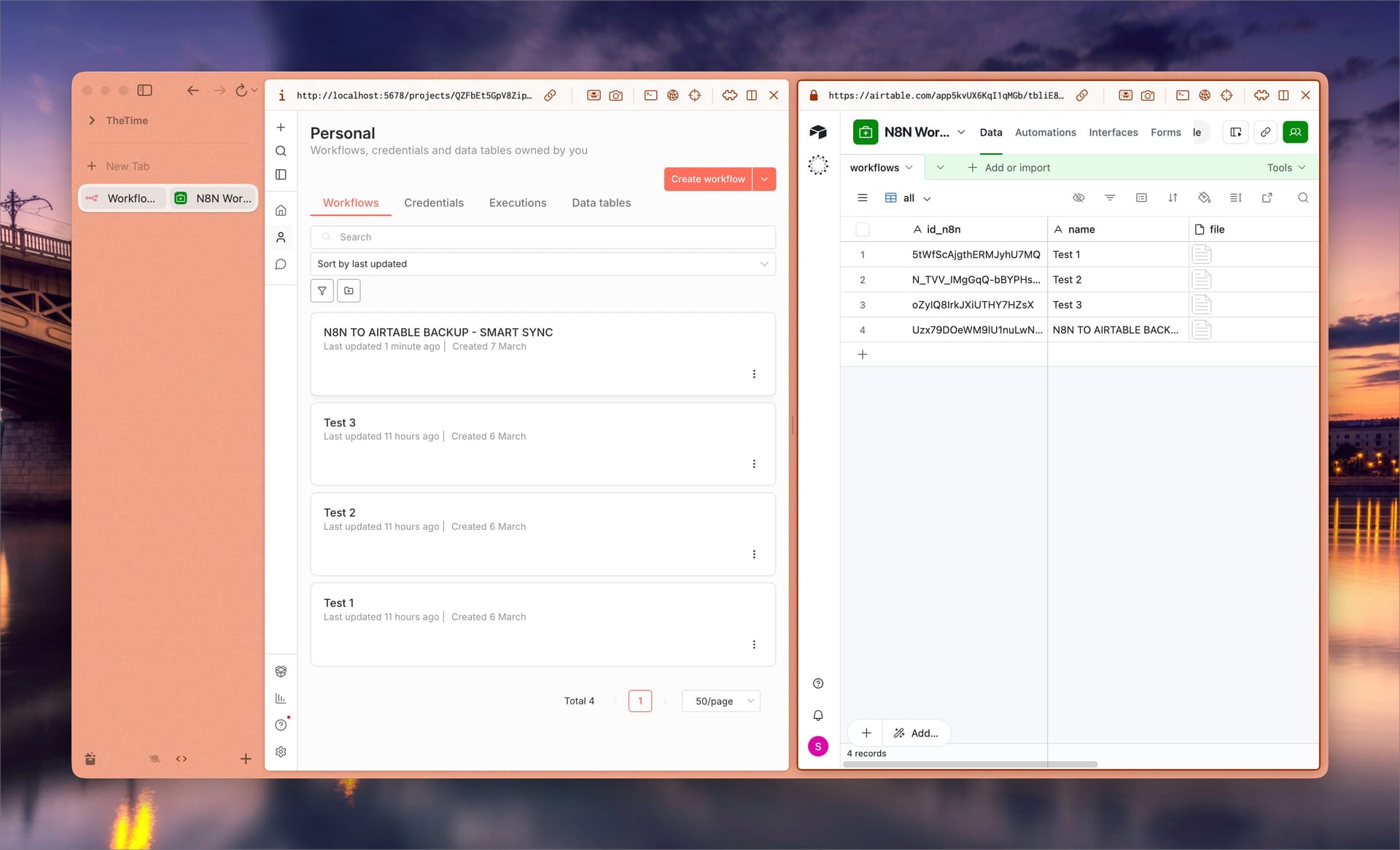
If you're running self-hosted n8n, there's a risk nobody really talks about: no built-in backup. One server incident, one accidental reset, one bad upgrade — and everything you spent hours building is gone.
I looked around online and found mostly backup-to-Google-Drive guides. The approach works by saving all your JSON files into a Google Drive folder, with Google Sheets acting as the index — tracking workflow names, file paths, and metadata. Reasonable in theory. But the setup is a pain: you need to create a Google Cloud project, enable the Google Drive API and Google Sheets API separately, set up an OAuth Client ID, and authenticate each service. Never done it before? Expect to spend 30–45 minutes just getting past this part — and you still don't get smart sync.
This guide walks you through the N8N TO AIRTABLE BACKUP - SMART SYNC workflow — download one JSON file, fill in 4 fields, done. It runs every 4 hours, 6 times a day, and when you delete a workflow in n8n, Airtable removes it automatically.
If you don't have an Airtable account and Personal Access Token yet, read the Airtable workspace and API key setup guide first, then come back here.
Why Airtable Instead of Google Drive?
Here's how the Google Drive approach works: all your workflow JSON files go into a single Google Drive folder, and Google Sheets acts as the "registry" — storing workflow names, file paths, and other metadata. Fine in theory.
The problem is the setup. You need to create a Google Cloud project, enable Google Drive API and Google Sheets API separately, create an OAuth Client ID, and authenticate each service individually. Never done this before? That part alone takes 30–45 minutes — and you still end up without smart sync.
Airtable handles it differently:
- Much simpler setup: Airtable only needs a Personal Access Token — create one token, paste it in, done. No Google Cloud project, no enabling APIs one by one, no OAuth flow.
- Everything in one place: The JSON backup lives right inside the Airtable record as an attachment — alongside the workflow ID, name, and timestamps. No jumping between Google Sheets and Google Drive.
- Sort and filter built in: Airtable automatically tracks
created_atandupdated_atfields. Want to see the most recently changed workflows? One click to sort. - Powerful search: Type the workflow name and it shows up immediately — no opening a spreadsheet, no copying paths, no hunting through Drive folders.
- Free tier is plenty: Airtable's free plan supports 1,000 records per base. With under 100 workflows, you'll be on the free tier for years.
Straight up: Airtable turns your backup into a searchable, filterable, sortable database — and cuts out the 30–45 minute OAuth setup entirely.
Before You Start
Run through this checklist first:
- Self-hosted n8n running — this guide doesn't cover setting up n8n from scratch. You need a working instance you can access.
- Airtable account (free tier is enough) + Personal Access Token — if you don't have one yet, follow the Airtable workspace and API key guide first. Takes about 5 minutes.
- Workflow JSON file — download it at downloads.sonjj.com/free/workflows/backup-n8n-to-airtable.json. No email required, just click and download.
Once you import the workflow into n8n, the workflow description includes a link to clone the Airtable base template — you'll use that in the next step, so no need to build the base from scratch.
Got all three? Let's go.
Import and Configure the Workflow
Step 1: Import the Workflow into n8n
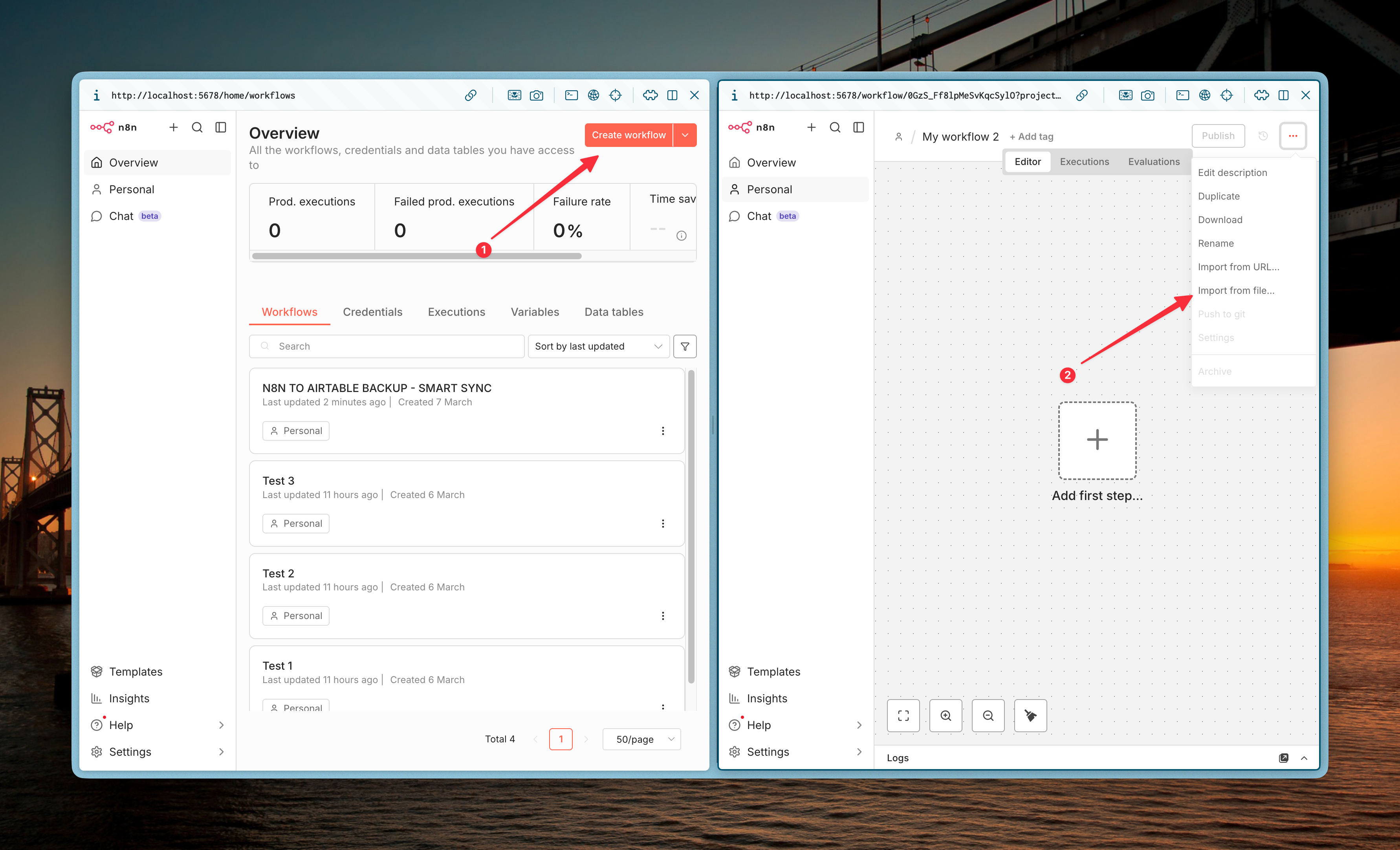
Open n8n → click Create in the top right → select Import from file.
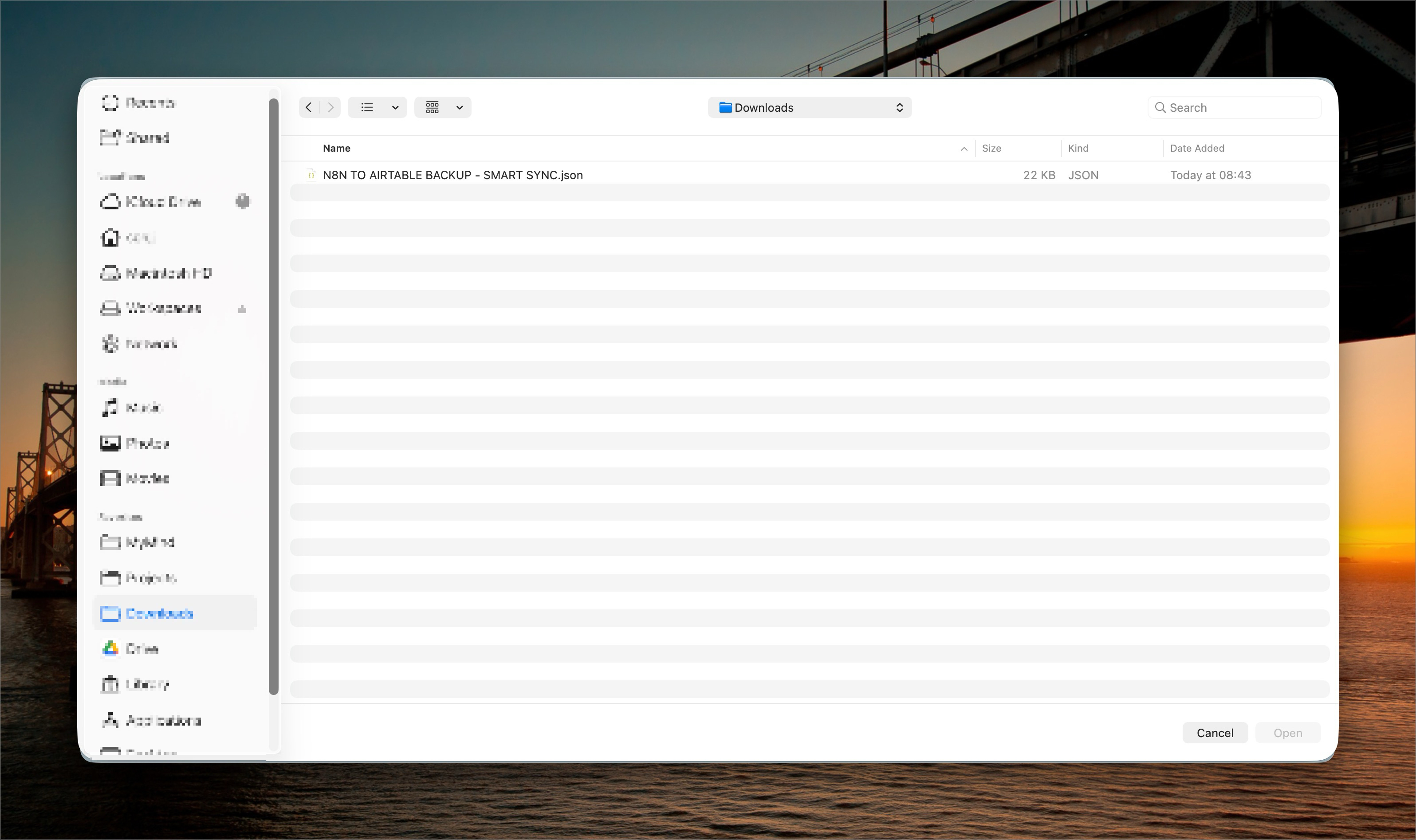
Select the downloaded JSON file (backup-n8n-to-airtable.json) → n8n loads the workflow. You'll see 2 branches running in parallel: Intelligent Backup and Cleanup.
Step 2: Clone the Airtable Base Template
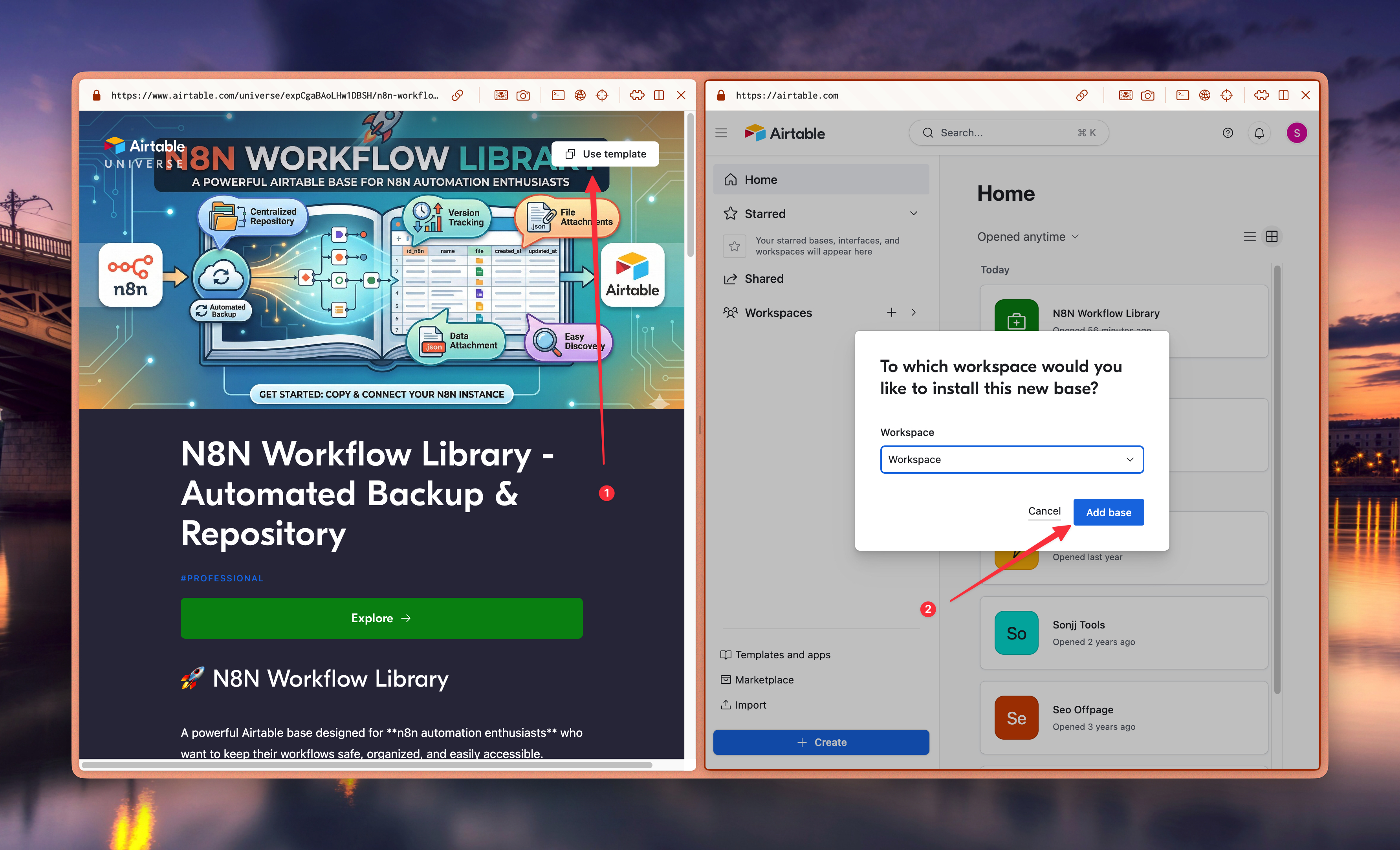
After importing, open the workflow description (click the workflow name in the header) — there's a link inside to clone the Airtable base template.
Click the link → Airtable asks you to log in → select the workspace to clone into → Add base.
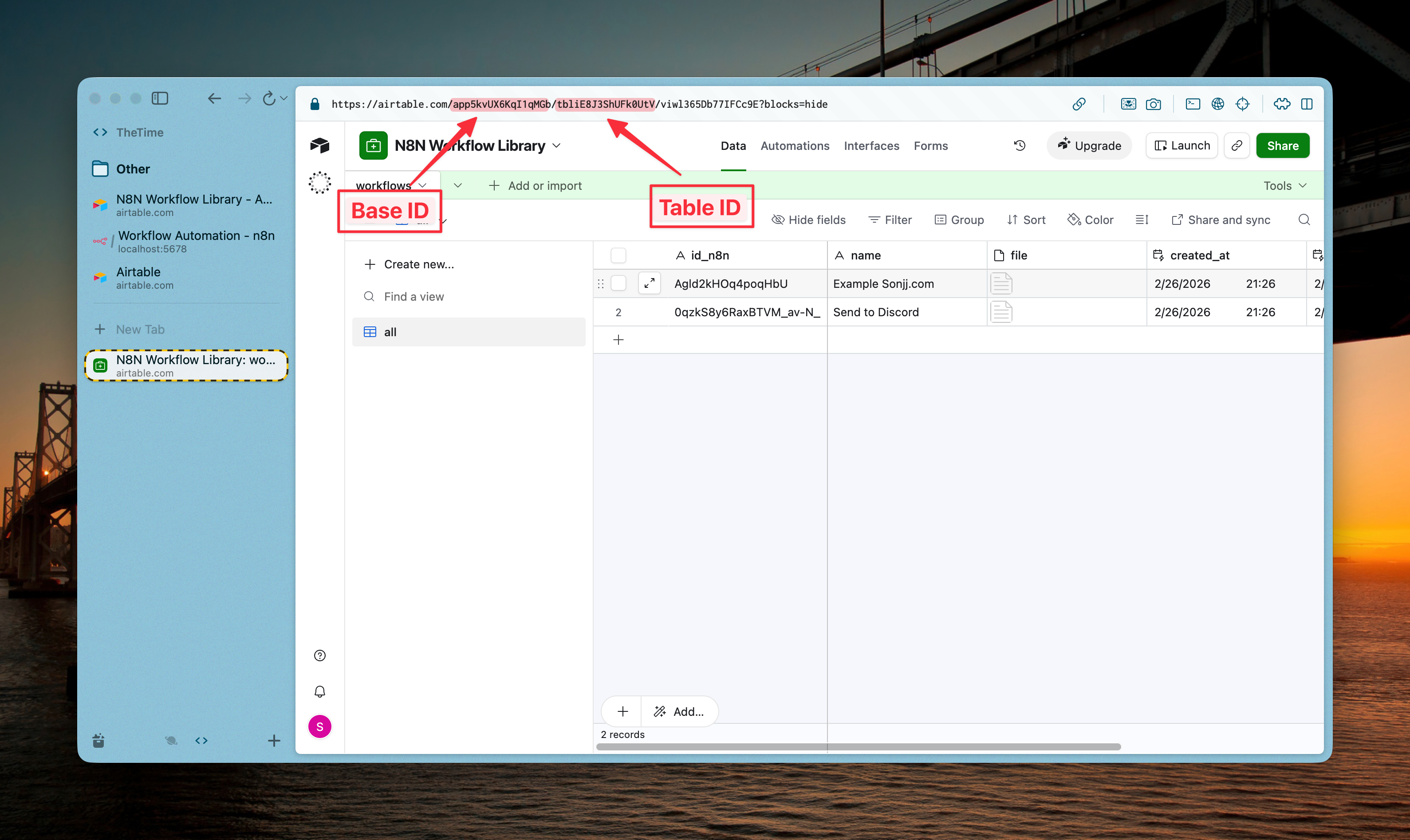
Once cloned, open the new base and look at the URL bar:
https://airtable.com/appXXXXXXXXXXXXXX/tblXXXXXXXXXXXXXX/...
Copy these two parts:
- Base ID: starts with
app(e.g.appXXXXXXXXXXXXXX) - Table ID: starts with
tbl(e.g.tblXXXXXXXXXXXXXX)
Step 3: Enter Base ID + Table ID in the "Airtable Info" Node
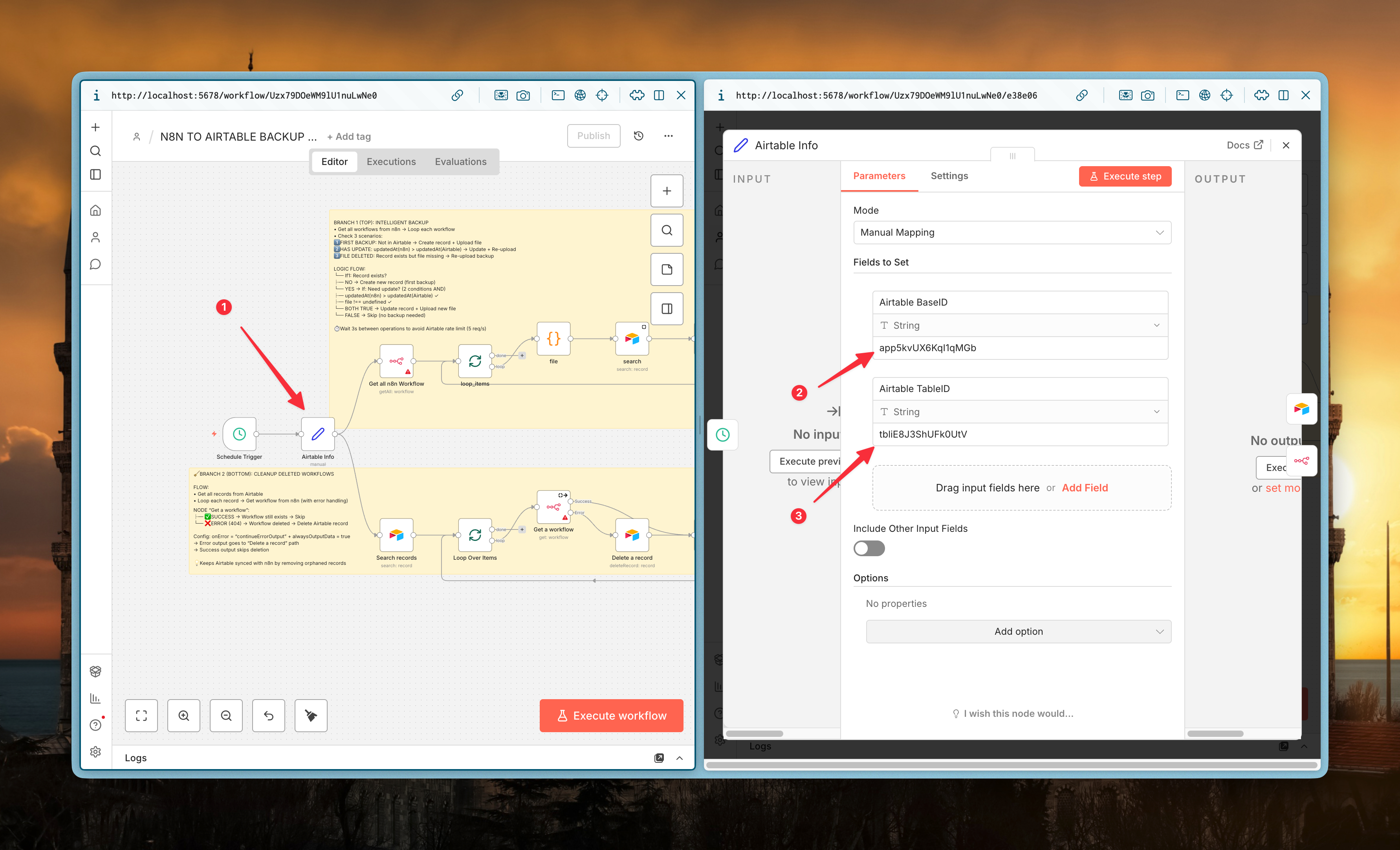
Go back to n8n → open the Airtable Info node (the green node at the start of the workflow).
Enter the Base ID and Table ID you just copied into the correct fields.
Quick tip: All Airtable config lives in this one node — if you ever switch bases, you only have to update one place instead of hunting through each node individually.
Step 4: Connect Your Airtable Personal Access Token
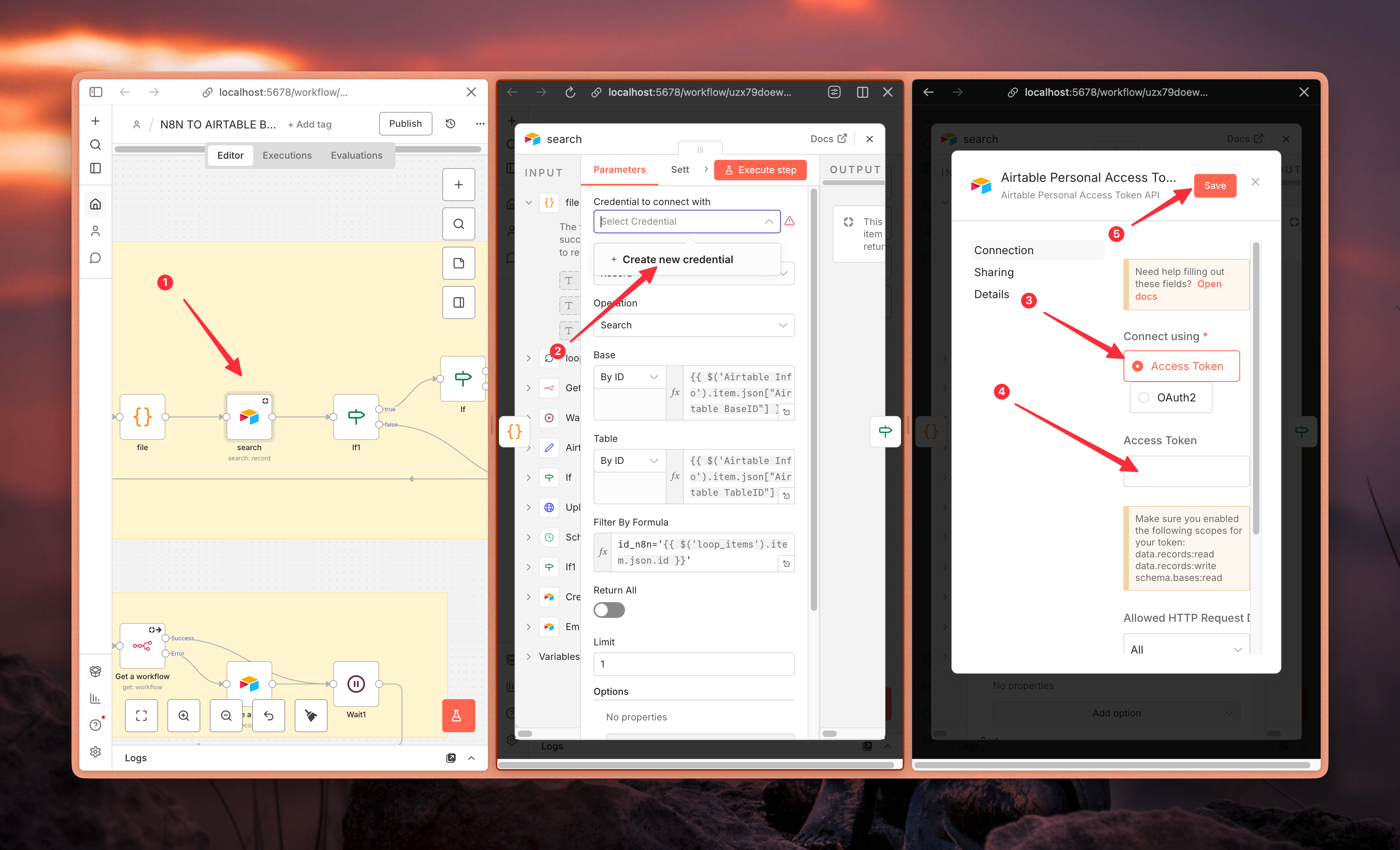
In the workflow, find the Airtable credential node → click to open → select or create a new credential → paste your Airtable Personal Access Token.
Don't have a token yet? See the guide on creating an Airtable Personal Access Token.
Step 5: Create an n8n API Key
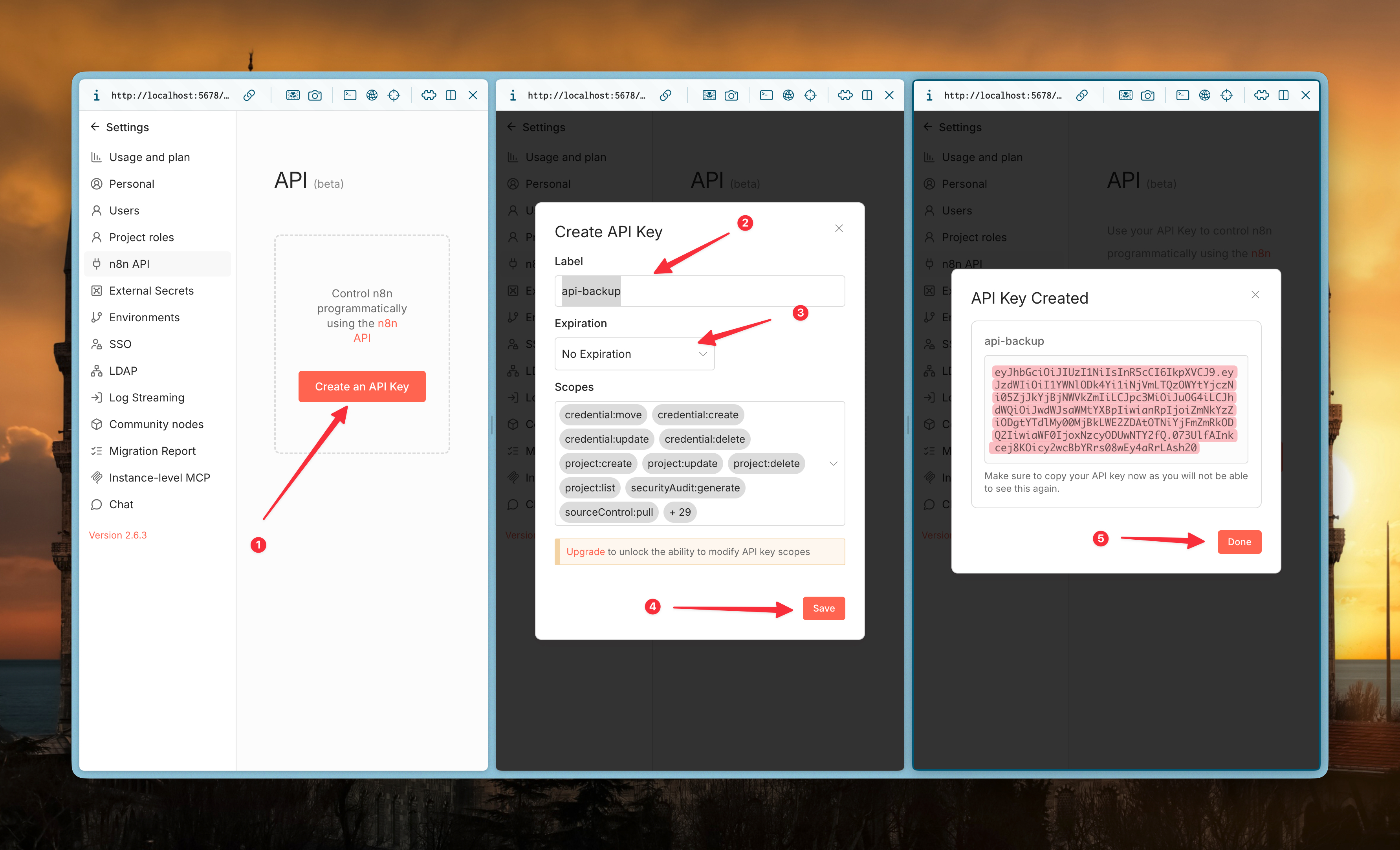
Go to your n8n instance Settings → select the n8n API tab → click Create an API key → give it a name (e.g. "Backup Workflow") → copy the generated key.
Step 6: Enter the n8n API Key in the Header Auth Node
Find the Header Auth node in the workflow → open the credential → paste the API key into the Value field.
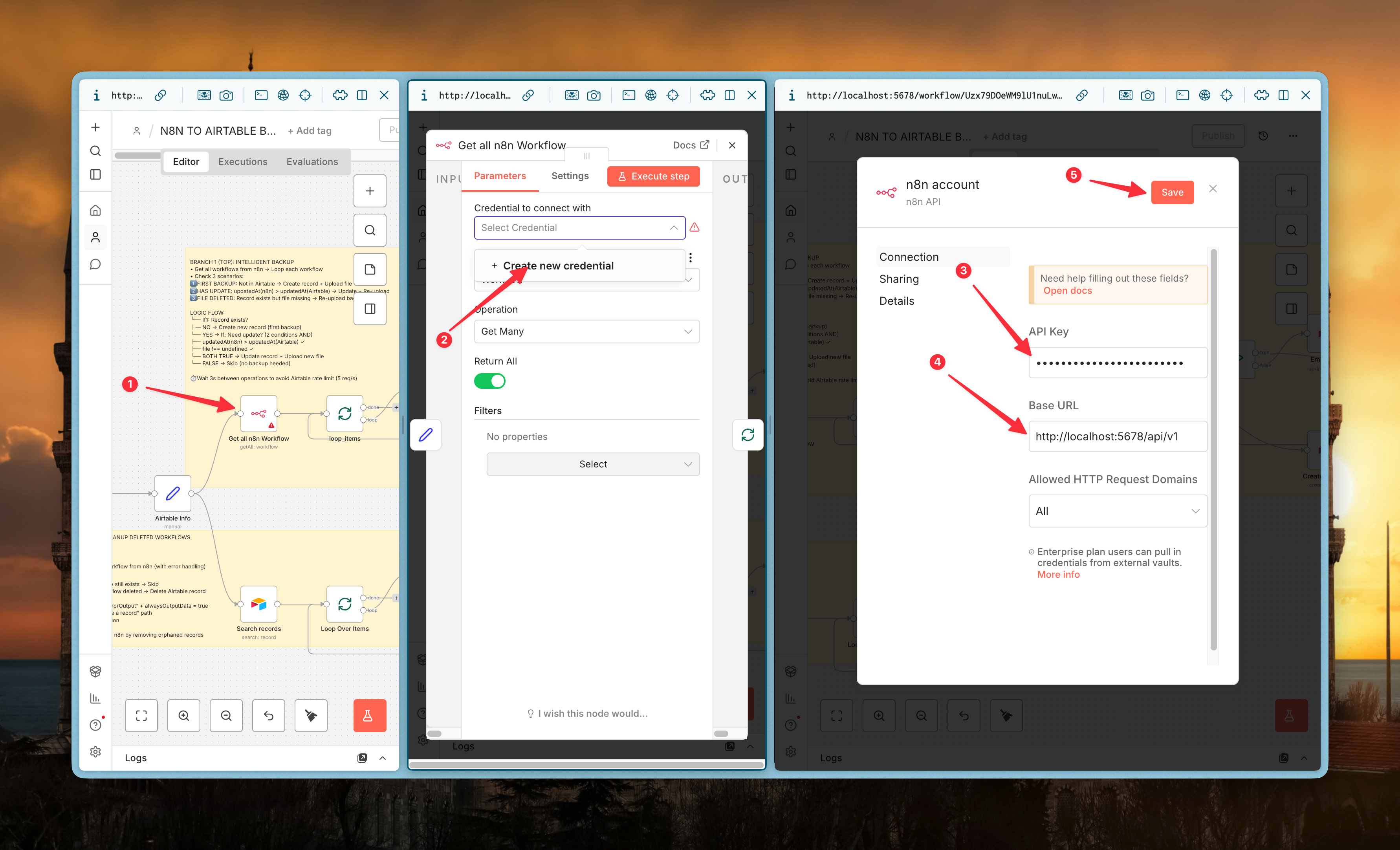
Configuration is done. The workflow now has access to both n8n and Airtable — activate it and it's ready to run.
How Smart Backup Works
After fetching all workflows from the n8n API (GET /api/v1/workflows), Branch 1 doesn't blindly back everything up. It compares against what's already in Airtable and sorts workflows into 3 cases:
- Case A — Not in Airtable yet: New workflow, never backed up → creates a new record + uploads the JSON file for the first time.
- Case B — Exists but has updates: Compares the
updatedAtfield in n8n against the record in Airtable — if they differ, the workflow was modified → updates the record + replaces the old JSON with the new one. - Case C — Exists, no changes:
updatedAtmatches → skipped entirely. No Airtable API call, no file upload.
This logic means 6 runs per day don't burn through API calls pointlessly — only workflows that actually changed get touched.
Sync: Auto-Delete When You Delete a Workflow
This is my favorite part of the workflow.
Branch 2 — Cleanup — runs in parallel with Branch 1: pulls all records from Airtable → uses the n8n API to check whether each workflow ID still exists (GET /api/v1/workflows/{id}).
If the workflow has been deleted from n8n, the API returns 404. Instead of letting that 404 crash the entire workflow, n8n is configured with onError = continueErrorOutput — a 404 isn't a fatal error, it's a signal that this workflow ID no longer exists. That signal triggers the next step: delete the corresponding record in Airtable.
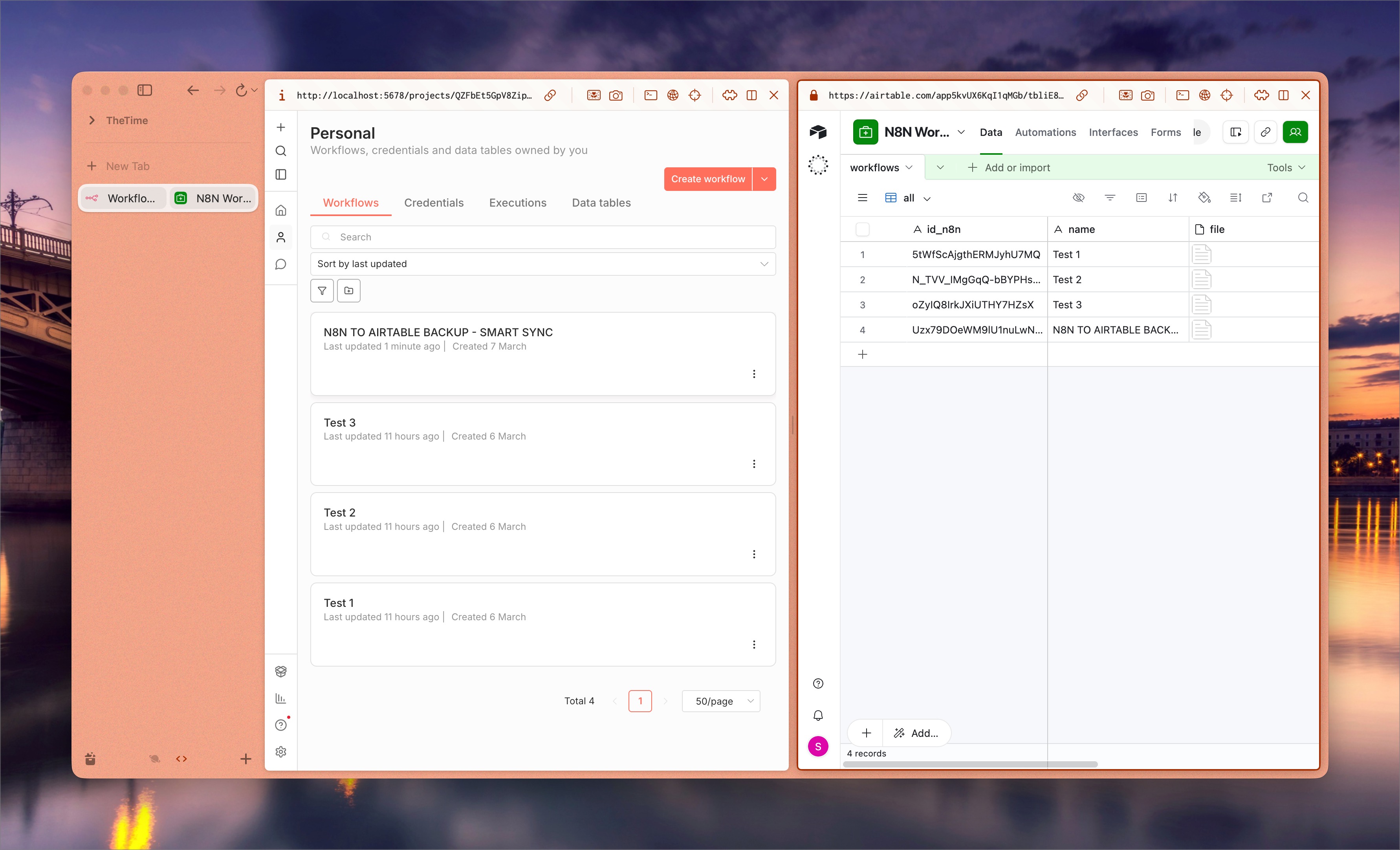
The result: Airtable always mirrors n8n exactly. No ghost backups from deleted workflows. No manual cleanup needed.
Download & Wrap Up
Set it up once and forget about it.
- Runs every 4 hours, 6 times a day (adjustable)
- Only backs up what actually changed
- Delete a workflow in n8n → Airtable removes it automatically
- Search, sort, and filter your workflows in Airtable — far easier than digging through Drive folders
Download the workflow: backup-n8n-to-airtable.json — no email required.
If you run into anything during setup, drop a comment below — I read them all.
No spam, no sharing to third party. Only you and me.