



Obsidian and Sonjj Agents: How AI Changes How We Manage Multi-Project Workspaces
My typical day starts with checking content plans and SEO, moves into tracking finances, and wraps up by checking server alerts and maintenance tasks across a few web projects. Earlier on, everything lived in different places: documentation in Notion, task tracking in Airtable, code on my local machine, and AI open in a separate browser tab. Every time I needed AI assistance, I lost time copying and pasting context just to remind the model what we were working on.
If you juggle multiple projects, run a small team, or want to introduce AI into your business workflows, this is how I brought everything together into one local workspace: Obsidian stores project documentation as Markdown files on disk, and Sonjj Agents reads folder-level rules to handle specific tasks. I use this pair as my operations control center. I rarely use Sonjj Agents to write code (that is my personal way of working; if you want to use it for coding, you can customize it for that). At the end of this guide, I will walk you through installing the tools and running a 15-minute sample audit task in safe mode.
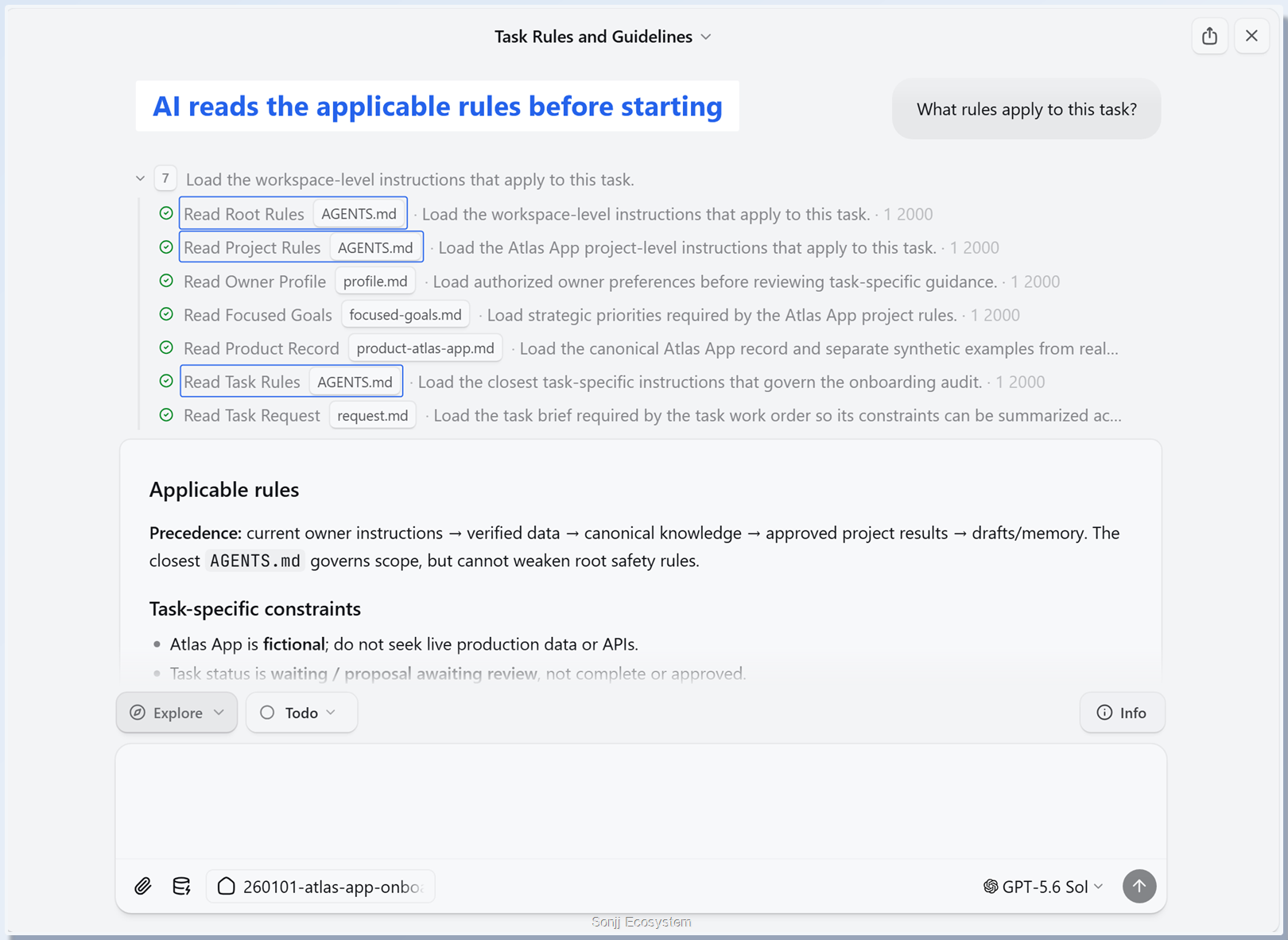
The screenshot below shows a real working session: Sonjj Agents reads all applicable folder rules before touching the task brief. The AGENTS.md files already live inside the workspace, so I never need to type or paste long background prompts every time I open a session.
From Scattered Tools to Obsidian and Sonjj Agents
When I first set this up, I looked at several Obsidian templates. But real-world operations forced things to evolve: keep what is actually useful, drop what adds noise, and build what is missing. When I paired the vault with Craft Agents, I ran into a few specific gaps in the upstream app—such as remembering working directories across sessions, flexible paths for skills and sources, and cleaner handling when connecting to Gemini models. So I forked and upgraded it into Sonjj Agents.
After months of real day-to-day use and steady refinement, the workflow is stable enough to package and share.
Obsidian is where I keep all notes, project structures, and working guidelines in local Markdown files. That makes version control with Git straightforward and puts backups in my own hands. Sonjj Agents acts as the execution engine: reading and writing files, running terminal commands, and calling tools within the exact permission level you grant. The mod is built on Craft Agents (open-source under the Apache 2.0 license). I packaged ready-to-run installers for macOS and Windows on the Releases page so you can get started right away.
You can also use the official Craft Agents release. Sonjj Agents is simply my personal fork, with its own name and icon to keep it distinct from the upstream app. If you do not need my specific customizations, the original version works fine.
A note vault and an agent app alone are not enough, though. The key to making them work cleanly together is how you structure projects and attach rules directly to folders.
Folder-Level Context as an Operations Hub
Instead of opening a chat tab and copying pages of background prompts every single time, I use a simpler pattern: every active project and task folder contains its own AGENTS.md file.
This file serves as a focused job description: it states what the folder contains, what the goal is, what "done" looks like, and which operational boundaries must never be crossed. When you open an agent session inside any folder, the first thing it does is read that local AGENTS.md. The AI immediately picks up full context and knows which rules apply—without you typing a single line of explanation. Every new session starts clean: no drag from old chat logs from days ago, just current documents and verified artifacts on disk.
Keeping files on your local drive makes it easy to track changes with Git and run backups on your own schedule. That said, using Git does not magically make data 100% safe: files do not push to GitHub by themselves, and access control and backup routines remain entirely your responsibility.
In the template, the Knowledges/ directory holds foundational context about you and your work. You can document your background, available resources, and operational constraints so that when evaluating an idea or a project, the agent references real facts instead of guessing. Naturally, the agent only knows what you write down and what the active session is permitted to read; do not assume the presence of a file means the AI will always interpret everything correctly.
An Operations Hub Rather than a Code-Writing Tool
As mentioned earlier, I rarely use Sonjj Agents to write code. I use it as an operations control center: tracking product milestones, coordinating content workflows and SEO, managing personal finances, handling daily tasks, organizing media assets, and reviewing server infrastructure through SSH or Ansible. That is simply how I prefer to work. If you want to use the agent for coding or project refactoring, you can configure developer tools, grant appropriate permissions, and assign coding tasks normally.
The Hierarchical AGENTS.md Rule Tree
When you set your working directory, the app automatically checks for AGENTS.md files at three levels: the workspace root (context root), the direct parent directory, and the current working folder. In my structure at 03-Workspace/{project}/{task}, the root rule also requires loading 03-Workspace/AGENTS.md. This gives any task a clear four-tier logic chain: Root → 03-Workspace → Project → Task. Files closer to the task define specific requirements, while baseline safety principles set at higher levels remain firmly intact.
For teams or small businesses, AGENTS.md files give everyone a shared reference for workflows and boundaries. They guide what the agent should do, but they do not physically block risky commands or replace organizational data security policies. That is why I combine them with the app's three built-in permission modes:
- Explore: read-only exploration, analysis, and planning; strictly blocks modifying project files. This is the mode to start with when testing.
- Ask to Edit: reads freely, but prompts for your confirmation before writing or editing any file.
- Execute: runs autonomously and writes files as requested without asking at every step; use this only when you know the task well and trust the granted scope.
If you are unsure which files an agent might touch, leave it in Explore mode. Review its proposed plan first, then decide whether to grant write permissions. With company data, always verify file access boundaries and your model provider's privacy policy before loading sensitive information into a session; keeping the workspace local does not mean all data sent to an AI model stays offline.
Two Ways I Use the Agent Across Sonjj Workflows
This folder-based structure proves its value most when switching between different projects. It keeps each operational domain cleanly separated—from project management to content workflows and quality control.
Each Project Follows Its Own Rules
All of my active projects live neatly inside 03-Workspace/. Every project has its own AGENTS.md covering background, objectives, and operational flows. Individual tasks get dedicated subdirectories with a request.md defining goals (adapted from templates/task-brief.md) and a task-level AGENTS.md locking down the execution scope. Here is the directory tree from the sample task in the template:
03-Workspace/
├── AGENTS.md                               # Quy ước workspace chung
└── atlas-app/                              # Dự án mẫu (Project level)
    ├── AGENTS.md                           # 3-trong-1: README + North Star + Flow
    └── 260101-atlas-app-onboarding-audit/  # Tác vụ cụ thể (Task level)
        ├── request.md                      # Yêu cầu người giao việc (từ task-brief)
        ├── AGENTS.md                       # Luật, phạm vi & DoD riêng của task
        ├── data/README.md                  # Dữ liệu phục vụ task
        └── results/recommendations.md      # Kết quả / đề xuất chờ duyệt
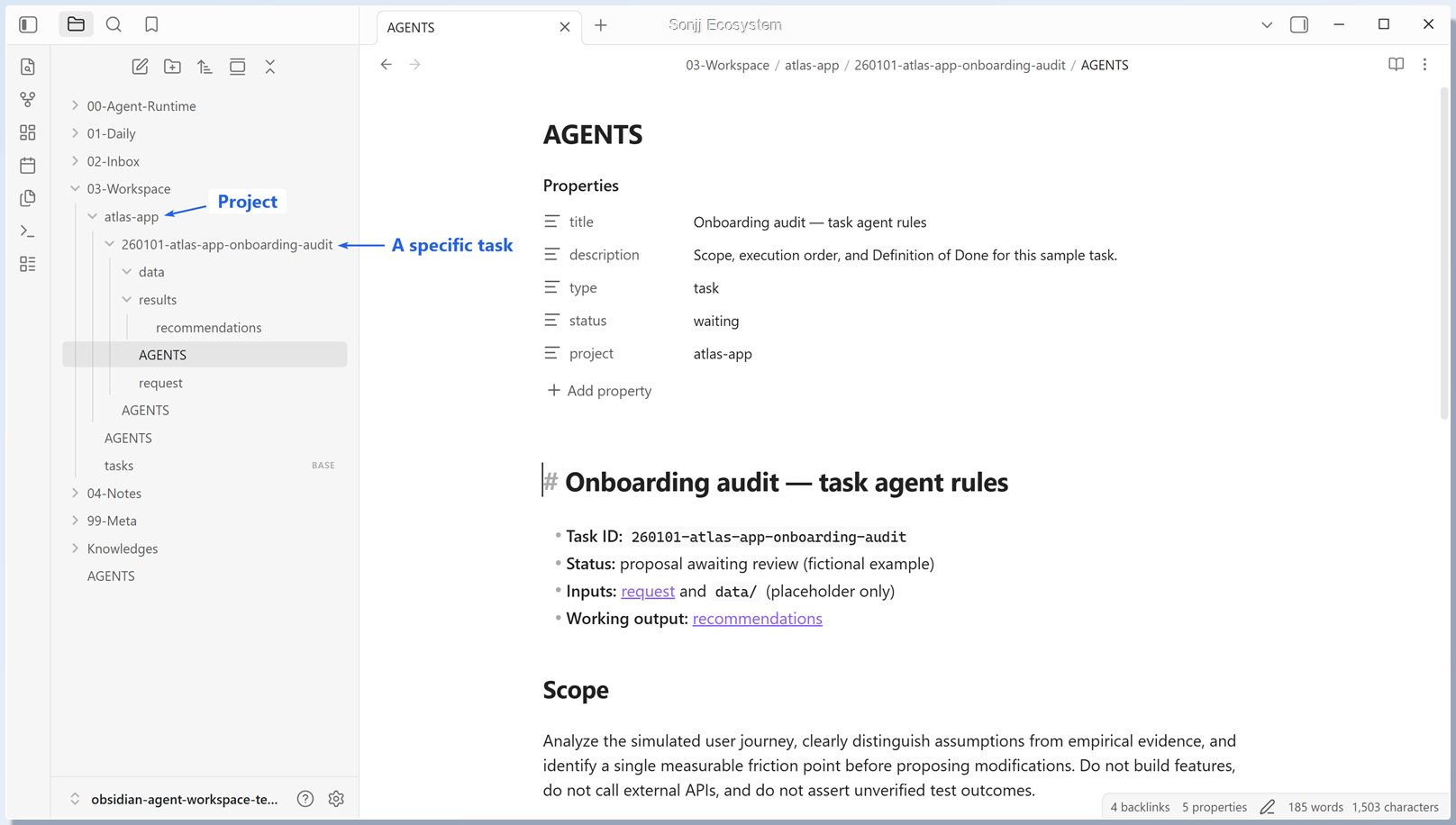
When you point the agent to a task folder, Sonjj Agents remembers that working directory for subsequent sessions. The agent reads the brief in request.md, references the relevant rule tiers, and reviews prior results—without carrying over irrelevant chat baggage from another project. Even so, you must always review the final output yourself; good structure does not guarantee an agent will get everything right every time.
Reviewing Content and Checklists Before Publishing
A very common daily workflow is quality checking documents or articles before publication. Instead of straining to verify every guideline from memory, I have the agent read the draft and evaluate it directly against a checklist stored in the project folder.
That checklist might specify: titles under 15 words, all required sections present, internal links resolving to valid files, and no inflated jargon or unsupported claims. Upon receiving the prompt, the agent scans the draft, flags items that miss the standard, and provides specific reasons along with recommended adjustments. Everything remains controlled: the agent reports its findings, while final approval and editing authority stay entirely with me rather than letting AI overwrite the article unchecked.
Setup and Running Your First Task
To get started, you will need a specific task you want to test, basic comfort using AI tools, familiarity with Markdown formatting, and an API key from your preferred model provider. Once those are ready, you can complete the four setup steps below in about 15 minutes. Actual time depends on your download speeds and account setup.
Step 1: Download and Open Sonjj Agents
Visit the Sonjj Agents Releases page, find version v0.14.1-mod.3, and download the installer for your operating system: the .dmg package for macOS (select the right build for Apple Silicon or Intel), or the .exe installer for Windows. I use the Mac version for screenshots here, but ready-to-use packages are provided for both platforms. If you prefer upstream Craft Agents, you can download the official release and install it the same way—you simply will not have my personal modifications.
Because this is a personal fork, the macOS build is not signed with an Apple developer certificate. If macOS blocks the app on first launch, verify the download source, head to System Settings → Privacy & Security, find the application notice, and click Open Anyway (enter your system password if prompted).
On Windows, if SmartScreen displays "Windows protected your PC", verify the downloaded file against the release page, click More info, and select Run anyway. For future updates, simply download the newer package from Releases and install it over the existing app.
Step 2: Open the Template in Obsidian
Download the obsidian-agent-workspace-template repository to your computer, or clone it using Git:
git clone https://github.com/mr-sonj/obsidian-agent-workspace-template.git
Open Obsidian, click Open folder as vault, and select the template directory you just downloaded. You can browse the files and explore the sample directory layout before assigning any work to an AI agent.
Step 3: Connect Your Model and Configure Paths
Launch Sonjj Agents. Go to Settings → AI and enter your API key for the provider you want to use (Claude, OpenAI, or Gemini). Never screenshot your keys or paste them into publicly shared files.
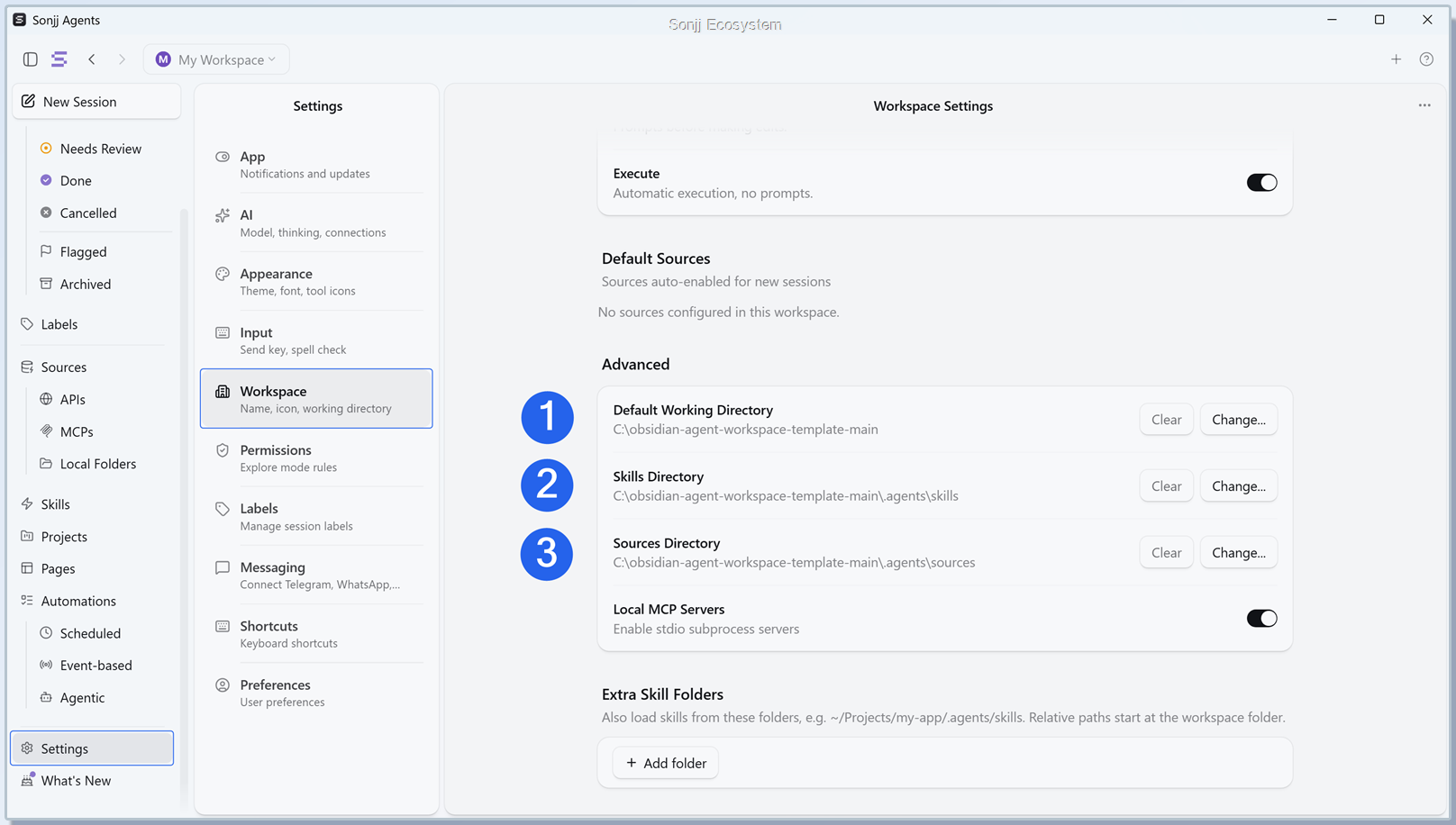
Next, navigate to Settings → Workspace → Advanced and configure three workspace paths:
- Default Working Directory: point to the root directory of the vault you just opened.
- Skills Directory: point to
{vault-path}/.agents/skills. - Sources Directory: point to
{vault-path}/.agents/sources.
The screenshot below shows where these paths live in settings; double-check the actual local paths on your machine before saving.
Step 4: Run a Test Task Without Modifying Files
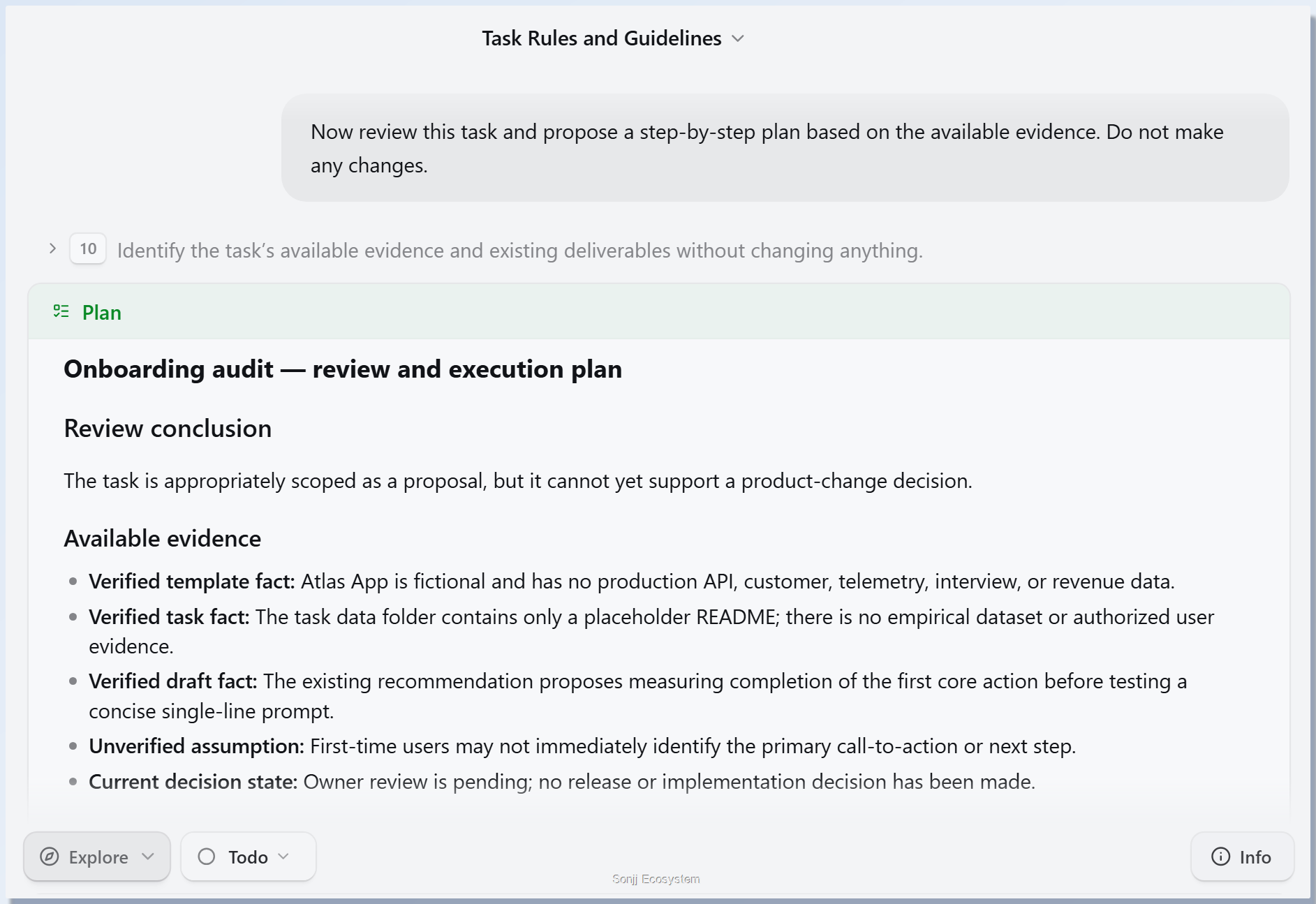
Start a new session pointing to 03-Workspace/atlas-app/260101-atlas-app-onboarding-audit/ in the template. Switch the permission mode to Explore, then submit the following prompt:
"Đọc các quy tắc được liệt kê từ root đến task, đọc request.md và recommendation, đối chiếu chứng cứ và lập kế hoạch thực hiện, không sửa file."
(English translation for reference: "Read all rules listed from root to task, read request.md and recommendations, evaluate the evidence and formulate an execution plan, do not modify files.")
Watch whether the agent correctly identifies the chain of rule files, the brief, and the sample data, then review the execution plan it produces. In Explore mode, write access to project files is strictly blocked. If you want to dive deeper into this sample audit procedure, you can check the documentation at 99-Meta/recipes/05-paired-project-review.md inside the template.
Start with One Real Task, Then Expand
That is how I combine Obsidian and Sonjj Agents to bring multiple project workflows into a single local file system—putting an end to copying prompts and restating context across separate chat tabs. Both the template layout and the app fork are free and open-source, so you can explore, use, and tailor them to your own preferences. However, they do not replace checking the results yourself or choosing safe permission boundaries for the agent.
My day-to-day production setup also includes OpenClaw and n8n for additional automation workflows, but you do not need them to complete this walkthrough. Whether you work solo, manage a team, or evaluate AI adoption for a business, start with a single project folder and a clear request in Explore mode. If testing with internal data, stick to documents that have already been cleared for AI processing. You can download the toolkit here:
- Download Sonjj Agents (open-source fork under Apache 2.0; macOS and Windows installers available).
- Download Obsidian Agent Workspace Template (open-source template under the MIT license).
- Read more on sonjj.com for more articles on how I apply this framework in practice.
In an upcoming article, I will break down each folder in the template and explain exactly how I use each part in real operations. For now, if you have an active task on your desk, try placing it inside a dedicated project folder and see how well the agent picks up context on its own—without you spoon-feeding it prompts.

No spam, no sharing to third party. Only you and me.