



A Tour of My Working Vault with Obsidian Agent Workspace
My MyMind vault currently holds about 6–7 projects and websites, work from two collaborators, and the AI agents that help me each day. I extracted the public Obsidian Agent Workspace template from this very vault: where plans live, where I keep the rules, and where work waits for my approval. The folder tree in this article is what I use every day, not a mock-up for screenshots.
Adding a project, handing work to someone else, or asking an AI to help all raise the same question: where does the context live? Folders help me answer that without sharing the whole vault when someone only needs a few documents. But a folder name does not decide what an agent can read. Access rights, configuration, and human approval matter too.
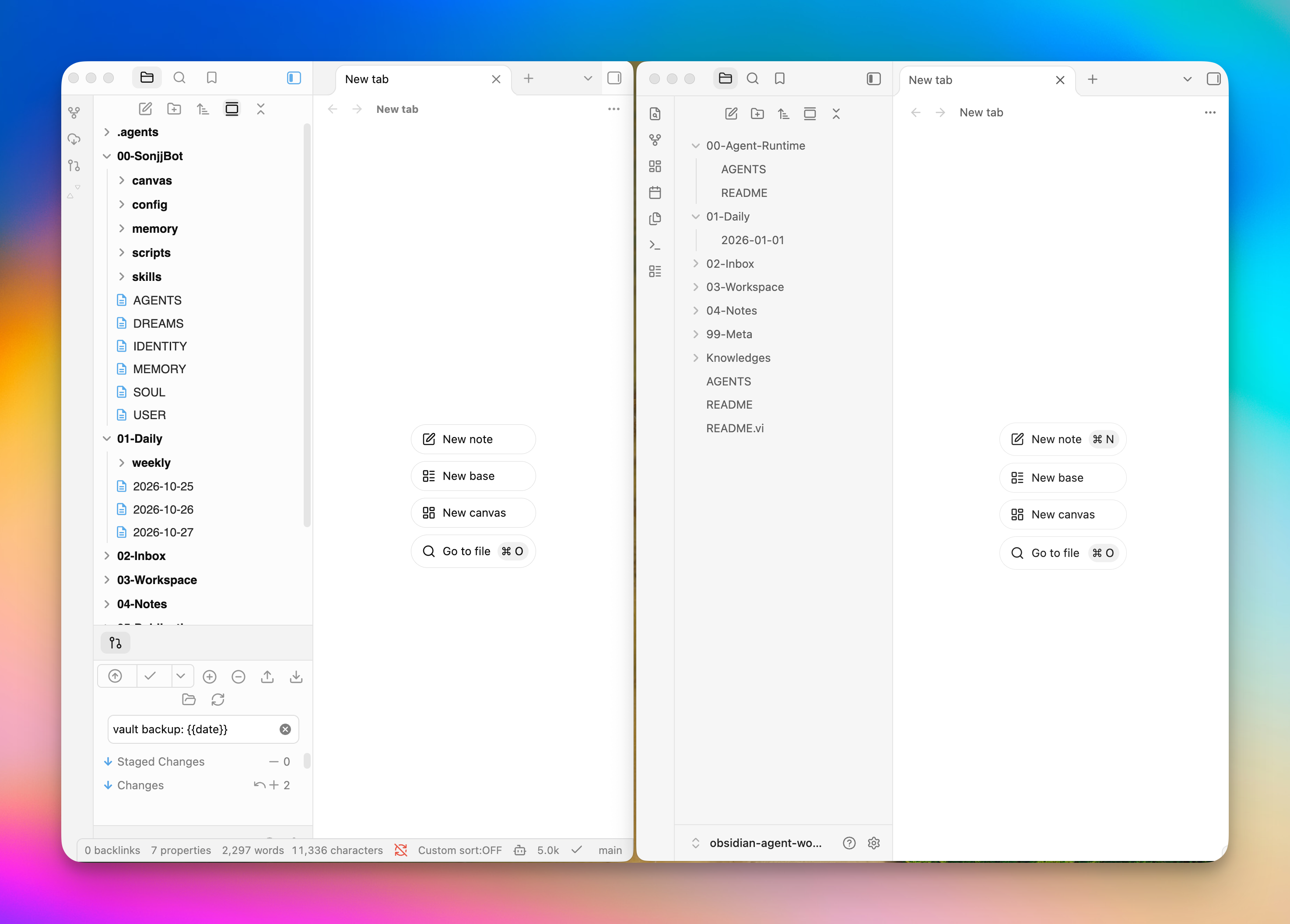
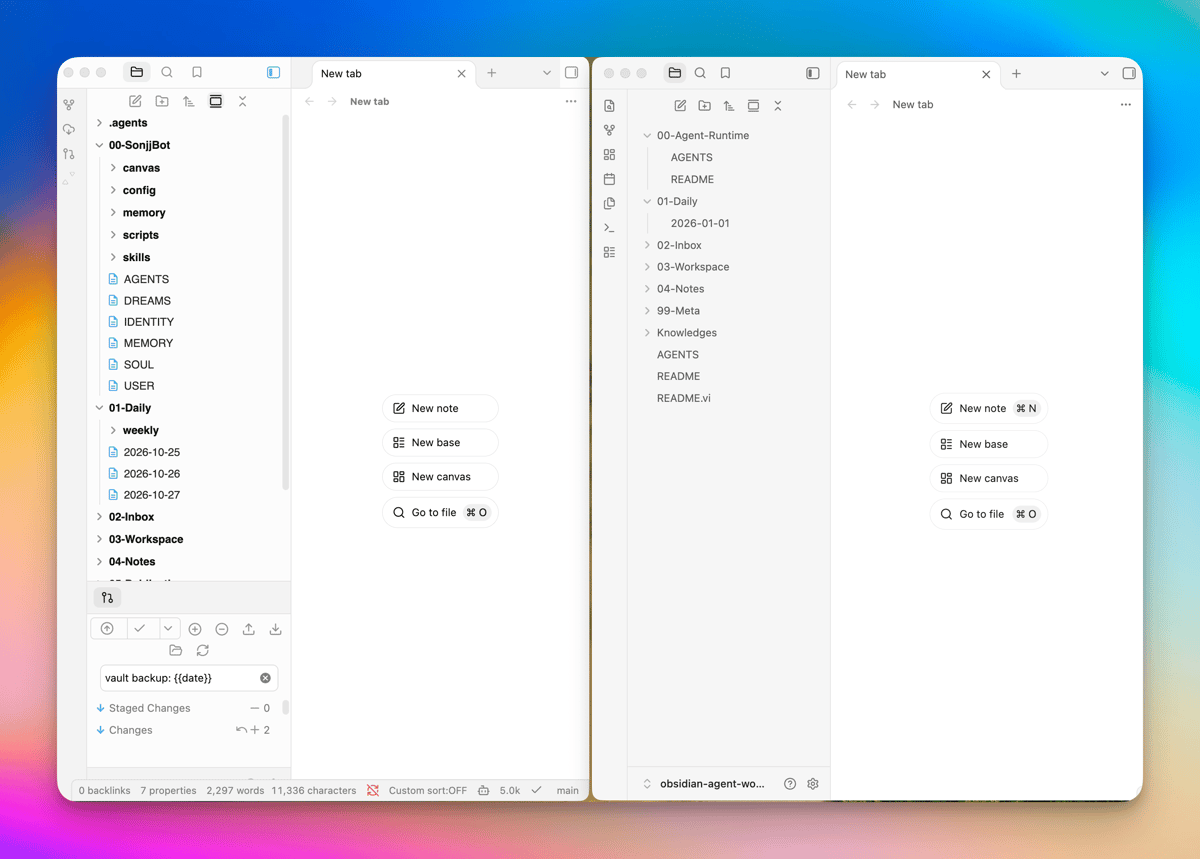
The image below puts my MyMind vault beside the public template. You can see the original skeleton and what I changed, especially the runtime folder. Projects and collaborator areas sit deeper inside 03-Workspace/.
First, the rules I give my agents live in AGENTS.md and .agents/.
Each folder can have its own rules in AGENTS.md and .agents/
At the vault root, AGENTS.md holds the instructions I don't want to repeat in every chat. My agent prioritizes instructions in the chat, checks the running system, and then consults Knowledges/ and its Memory. It must ask me before deleting data, sending email, publishing an article, or calling a webhook/API that changes an external service.
Projects and collaborator work areas can have their own AGENTS.md. When an agent opens a folder, it reads the applicable rules from the root down; the file closest to the work adds to or overrides the relevant parent rules. A task under 03-Workspace/{project}/, for example, inherits the root rules, the project rules in 03-Workspace/{project}/AGENTS.md, and its own task rules. That's a convention I've configured for my agents, not something every app does automatically.
The .agents/ folder holds two different things:
skills/{slug}/SKILL.mddescribes how to do a particular job. My handoff skill follows What to know → What to do → Hand off → What needs approval, so the recipient knows what they need and where to stop for my review.sources/{slug}/connects to Airtable, Gmail, or an API. A source fetches data; anything worth keeping goes back into the right project instead of getting lost in chat history.
The agent prepares and drafts; I approve. An analysis or customer response that exists only in chat hasn't been handed off. And a rules file is not a security sandbox. It guides an agent's behavior but doesn't limit operating-system access. If a tool has broad permissions, writing “don't read elsewhere” in AGENTS.md won't lock it down. The public template doesn't include my skills, sources, or credentials either; authentication needs to be configured on each machine.
Rules tell the agent how to work. For the facts it should use, I keep Knowledges/.
Knowledges/: the facts about me and my products
Knowledges/ holds the background facts about me and my work: what I've done, where each project stands, real figures and specifications, and what each product actually does. The agent checks it before answering instead of guessing from a few lines of chat.
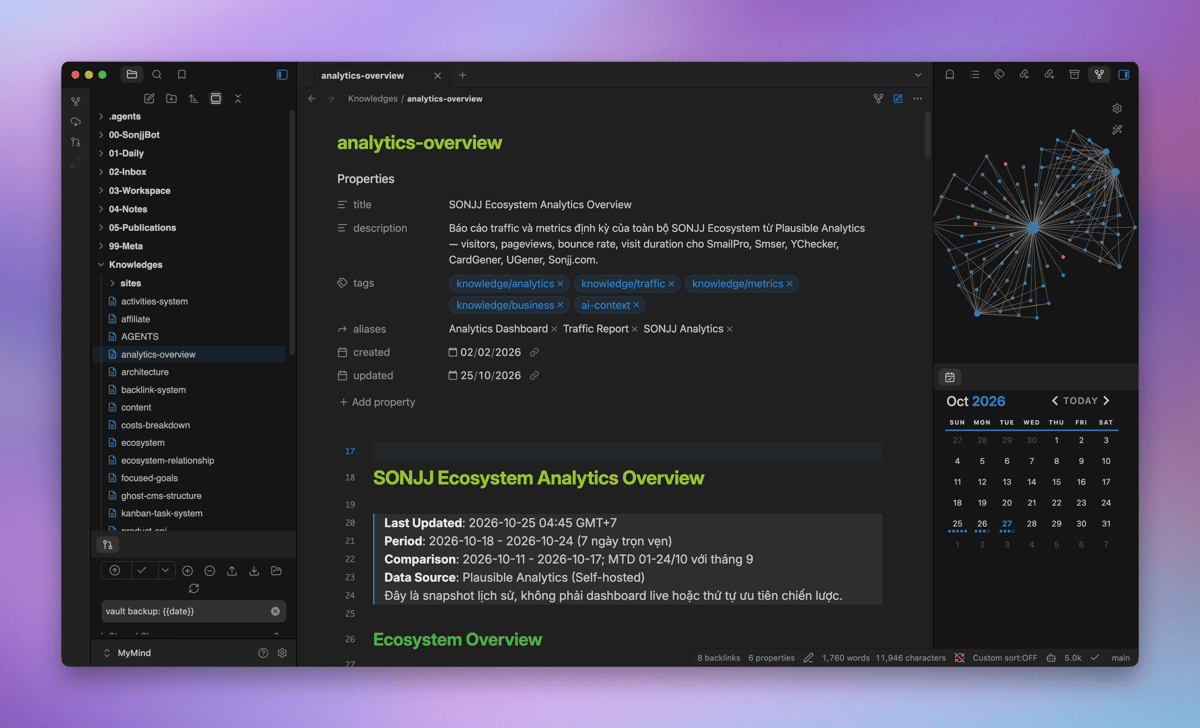
If I ask whether to build a new feature, the answer needs to account for what I actually have: money, time left that week, experience, and infrastructure. If my week is already full, I need a smaller option, not a grand plan. With real context, the agent can suggest something I might manage rather than work I can't take on.
The folder also helps check product claims. SmailPro is a temporary email service that receives mail only; it cannot send or reply. The agent has documentation to check when drafting content or a support response, but I still review it before sending. Having a source to consult doesn't mean AI will always read it correctly or never make things up.
I keep the original knowledge base on my own machine and don't share all of it with collaborators. When someone needs a document for a job, they get a summary with sensitive details removed in their work area. That creates another obligation: when the original changes, the shared copy needs an update, or the recipient may keep working from old information. Passwords, API keys, and authentication tokens don't belong in Markdown; I keep those in a separate secrets manager.
That's the relatively stable context. Daily work goes into other folders.
The folders that keep daily work moving
00-SonjjBot/: OpenClaw runs background jobs; I assign them through Telegram
The template calls this folder 00-Agent-Runtime/. In my actual vault I renamed it 00-SonjjBot/ because it's for OpenClaw. If you don't use OpenClaw, choose another agent or leave the folder empty until you have background work. The public template includes only the folder and a README, not my bot or its schedules.
At my desk I use Craft Agent to read documents, plan, write, and edit code. OpenClaw on my Mac mini at home mostly handles automations; in my experience it runs those jobs more smoothly than the agent I use interactively on my computer. I've connected OpenClaw to Telegram so I can assign work while I'm out without returning to my desk.
I've set things up so the two agents can use each other's skills when appropriate. Scanning support mail into task cards, collecting articles to read, and noting items for my review in Daily are background jobs I give the bot. When a decision is mine to make, it hands off and stops.
01-Daily/: what ran today and what still needs my decision
In the morning I open 01-Daily/YYYY-MM-DD.md to see what the bot ran and what needs my decision. It scans support mail and records anything I need to handle in Daily, so I can come back to it rather than search through chats or my inbox. An item appearing there doesn't mean the job is done.
I also jot down things that come up during the day. Looking back through the Daily files at the end of the week helps me spot work that keeps recurring and might be worth automating, or decisions that have sat too long. Dates in the filenames help me find a decision or a bot run without guessing whether “I think we already did that.”
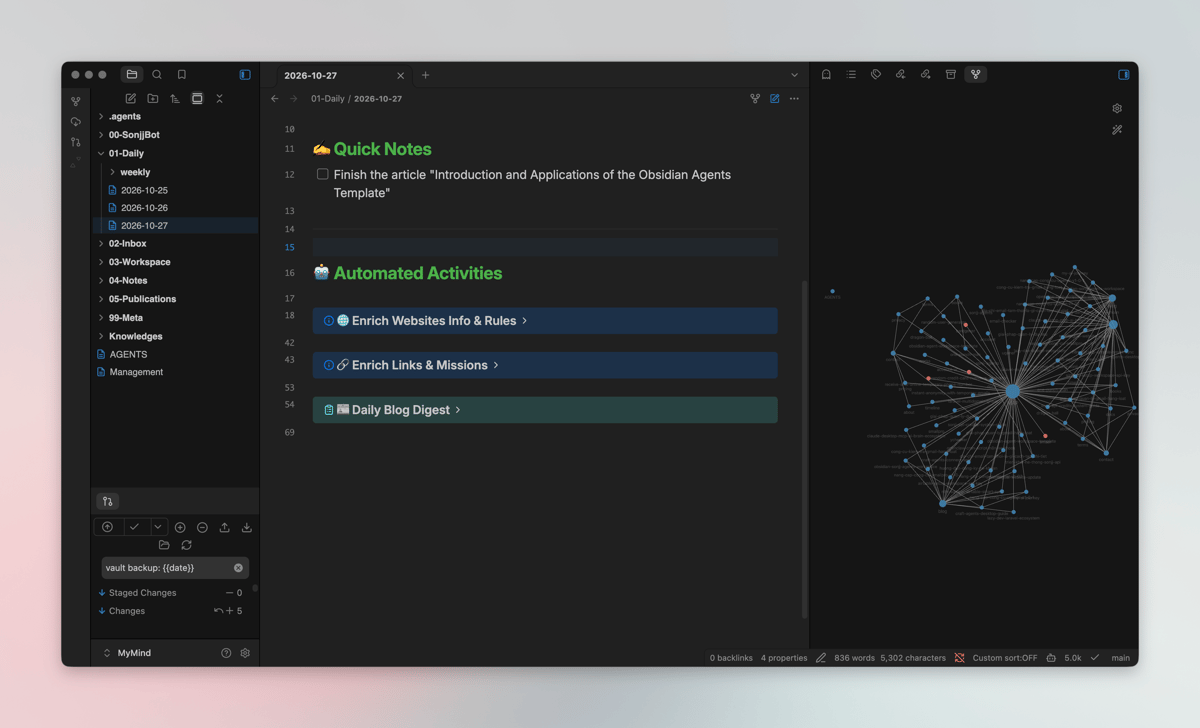
Daily is a log, not a permanent home for results. Work worth keeping goes back to its project in 03-Workspace/; source data stays in Airtable or whichever service owns it. I check Daily for the next step, then return to where that work belongs.
02-Inbox/: rough ideas and unfinished conversations
New ideas and article suggestions collected by the bot go into 02-Inbox/. When a conversation with an agent gets long and goes nowhere, I often ask it to summarize the thread and drop it into Inbox too. Being in Inbox doesn't mean I'll do it. Only when I choose to act do I move an idea into a project, so it doesn't interrupt work already in progress.
04-Notes/: practical notes for the next time a problem comes back
04-Notes/ holds things I've learned in practice, fixes I might need again, and information worth keeping long term. That might be notes on configuring my two machines or a runbook for rebuilding a system. When I've solved a problem once, I write it down here so I can open the note and deal with it next time.
99-Meta/: shared templates, images, and small scripts
99-Meta/ holds images, files, and templates shared across projects: a daily-note template, task-card patterns, a Kanban board, a task-folder layout, and small code files for simple jobs. Keeping these reusable pieces together saves each project from recreating them.
The actual work for each project lives in 03-Workspace/.
03-Workspace/: real projects and collaborator work
Each project is an independent folder with its own rules
Each project in 03-Workspace/ has its own folder and AGENTS.md. The brief and outline for the article you're reading live in 03-Workspace/sonjj.com-strategy/, beside the content plan. When I need to remember who an article is for and what it should cover, I open that project instead of digging through chats. 03-Workspace/airtable-manage-accounts/ holds rules, maintenance plans, and operating notes; the actual account data remains in Airtable rather than being copied wholesale into the vault.
I handle small jobs directly in the project. When a new project arrives, I add its folder and rules without reorganizing all the old ones.
Break complex work into task folders for handoff
Within a project, I make a task folder when work needs substantial context or a separate deliverable. The template suggests request.md for the request, AGENTS.md for task rules, data/ for inputs, and results/ for outputs. My real folders may use different names. The point is that someone opening one can find the request, the data, and the handoff.
For example, a task matching 236 SmailPro keyword rows to landing pages in 03-Workspace/airtable-manage-seo/260924-smailpro_com-strategy-keyword-mapping/ uses AGENTS.md to set the scope, artifacts/ for working files, and review/ for the report. If I need to fix the result, I know where the report is instead of searching chat. After review, anything worth keeping goes back to the parent project; the task folder can remain as a record. Folders tell the agent where to look, but their names don't restrict access.
Sharing work with 2 collaborators: sync only the folders they need
I have two areas, @hieu and @ledat, under 03-Workspace/, following the @tên pattern. Syncthing sends each 03-Workspace/@tên/ folder to the right person's machine. Inside are an AGENTS.md defining their role and boundaries, the .agents/ pieces they need, cleaned-up documents, dated task cards in tasks/, and a TODO.md board. They have the documents beside the work without receiving my entire vault. I added these two areas myself; they aren't included with the template.
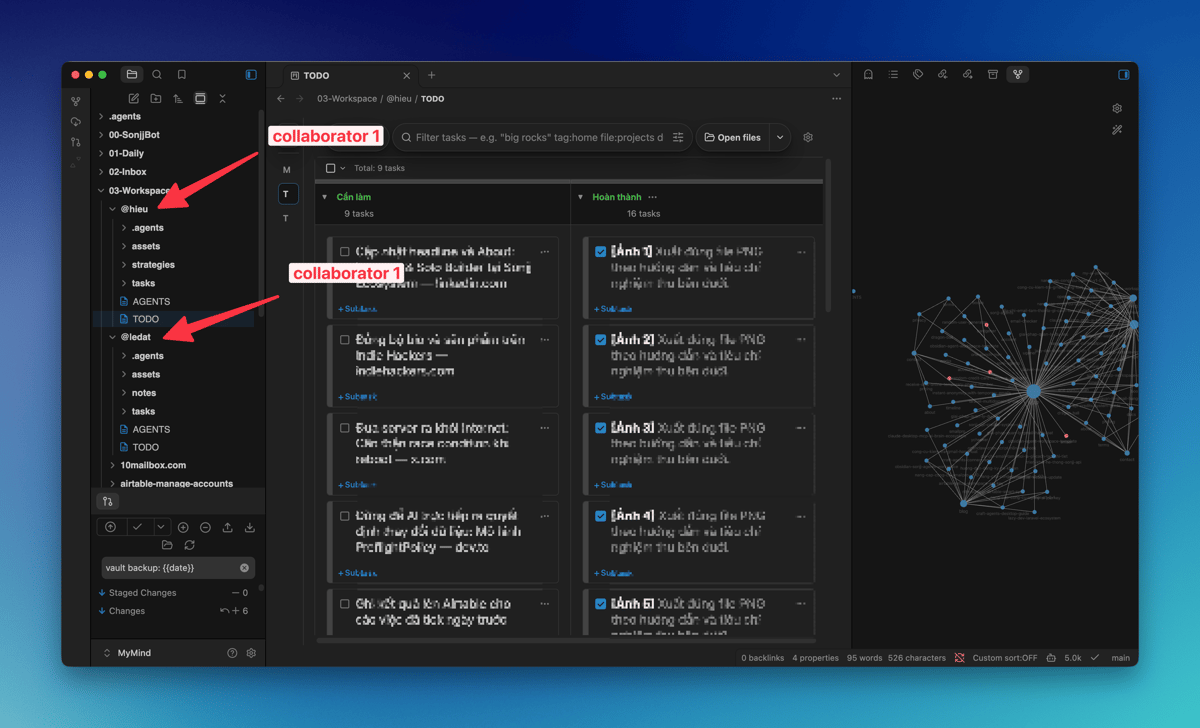
I assign work through cards in tasks/YYYY-MM-DD.md; the bot prepares context, limits, and a way to check the result. The collaborator checks TODO.md, can ask AI to draft, and then works within their assigned scope. An open item has - [ ]; when finished, they mark it [x]. Syncthing brings changes back to my machine, where Management.md shows their status. The board shows progress; it doesn't approve the quality of the work. Sensitive decisions such as refunds still come to me.
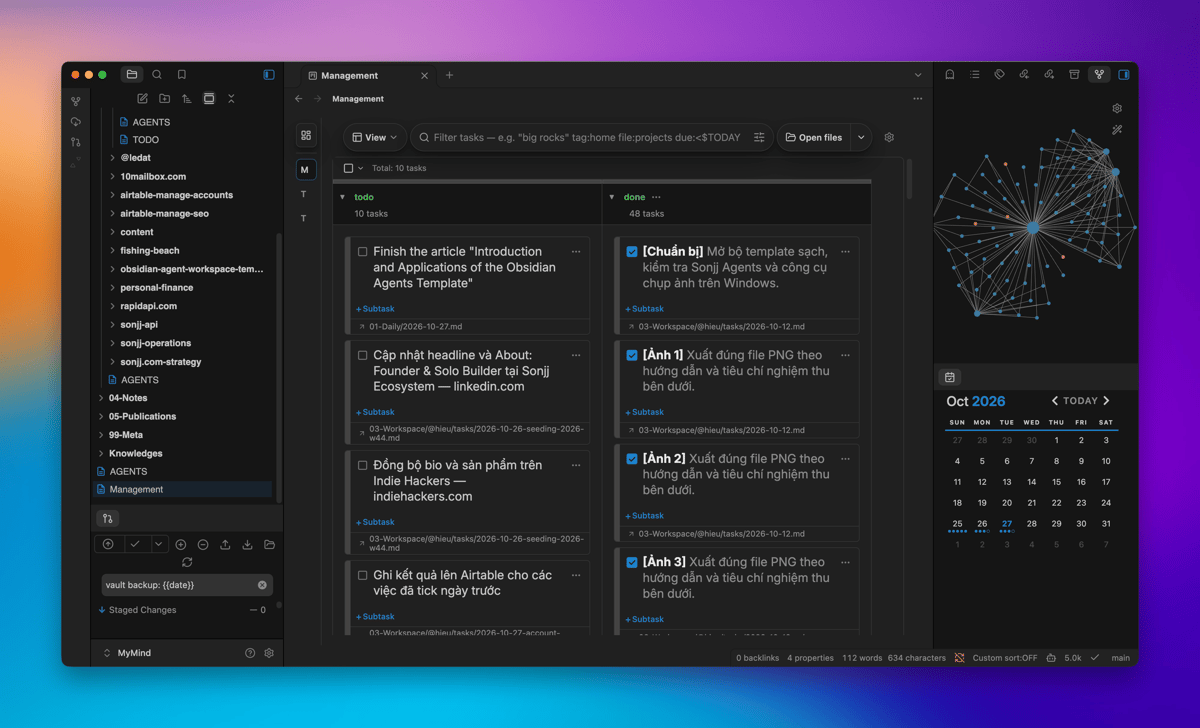
Complex work gets a task folder; each collaborator gets a separate shared area. Their machines sync only the folders I choose, not other projects or the original Knowledges/. That's a sharing scope I chose, not a security boundary created by folder names or a rules file.
I don't put secrets in shared folders. Stopping Syncthing doesn't revoke file copies that already reached someone's machine, so I think about what could end up there before enabling sync. AI can help draft; public actions still belong to the authorized person. The collaborator folders, Kanban board, and management view are things I added or configured, not a ready-made task system in the template.
Once files travel between machines, it's easy to confuse syncing with keeping a safe copy.
Keeping control of my files across machines
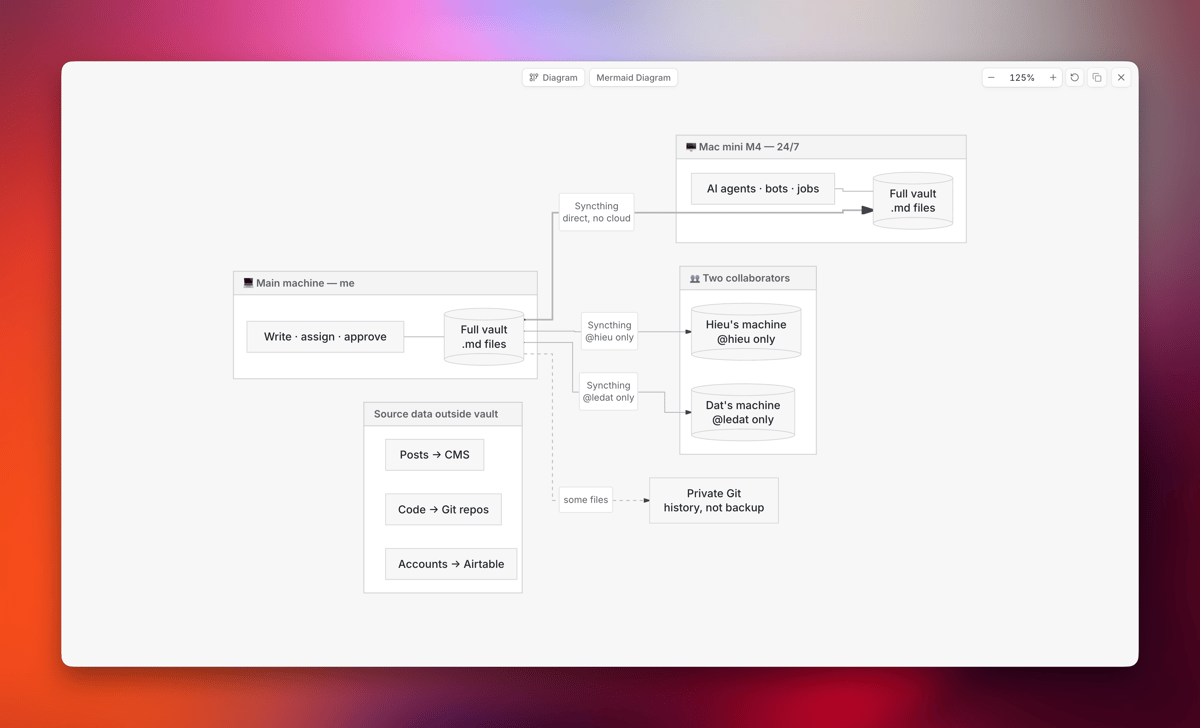
What I like about this setup is that the vault lives on my own machine. Rules, notes, and results are UTF-8 Markdown files with relative paths. I can open, edit, or move them to another machine without handing all my work context to a project-management app to hold for me. I write and review on my main computer; the Mac mini M4 HomeServer at home runs agents, bots, and background work 24/7. Syncthing keeps the vault in sync between those two machines.
My two collaborators receive only the @hieu and @ledat folders through Syncthing, not the whole vault. Those folders still live under 03-Workspace/ on my machine, so the documents and results they sync back can become part of the private Git history along with the rest of the vault. Once I commit and push changes to the remote, I can inspect or restore an older version if needed. Git doesn't save uncommitted changes automatically, and it doesn't replace an independent backup. Files already sent to a collaborator's machine remain there even after I stop sharing.
The vault holds context, rules, plans, and results; source code lives in separate repositories, account data in Airtable, and published articles in the CMS. I choose what stays on my machine, what I share with others, and what I push to private Git. If an outside service hosts the Git remote, a third party still holds a copy. “Control” here means keeping the original files and choosing the sharing scope, not promising the data never leaves my machine. This diagram shows where the file copies go:
Start with one person and one real project
My vault didn't start with all these folders. I began with one person and one project. Once that project worked, I added more projects, people, bots, and boards as I needed them.
If you work alone, tomorrow's recipient of a task might be you. A task folder keeps the request, inputs, rules, and results together so you can pick up where you left off instead of finding a context-free reminder. An agent can help read documents, prepare a draft, or track work within the limits you set; the decision and approval are still yours. When someone joins to help, make a separate area and give them only the documents they need.
You don't have to write code or work in tech to organize things this way. Whatever your field, if you have projects, documents, and work to track, you can start with one folder of your own. A freelance designer could use a project per client and keep an assistant's work in a separate folder. A wedding photographer could use a project for a season, a task for each shoot, and a handoff folder for the editor. A teacher could organize classes separately and share selected grading or lesson materials with a teaching assistant. Those are suggestions, not projects I've run myself.
As AI becomes easier to bring into everyday work, giving it context and boundaries matters more: what should it read, how far should it go, and where should it put the result? Keeping documents in files you manage makes them easier to inspect or move to another tool. But storing files yourself doesn't make them safe by default. You still need access controls, a way to remove sensitive details before sharing, and suitable backups.
For an overview and the initial setup of these two tools together, see Obsidian and Sonjj Agents. If you want to try this on your own machine, open the Obsidian Agent Workspace template repository, read AGENTS.md, and pick one real project of your own. You don't need a bot, a Kanban board, or collaborator areas yet. Add the next folder when you have work for it.

No spam, no sharing to third party. Only you and me.